 Gala games
Gala games: Requirements for your first session
Gala games first-session requirements depend on the title you choose and its supported platform. Start with the game’s access conditions, a compatible device, and the account that its launch method requires. Free-to-play options let you try gameplay before buying an NFT. A desktop title may also need the Gala Launcher and a separate game installation. Treat a working game screen as the launch checkpoint; an installed launcher alone does not establish that you can play.
A successful launcher installation prepares the software; your first session starts only when the selected game opens and accepts your input.
Browser play and installed game clients
The selected game’s launch method determines whether you play through a browser or install software on your device. Browser access avoids a separate desktop installation for titles that support it. A downloadable game needs its own compatible client, even when the catalogue opens normally in your browser. Choose the title before preparing the device, because access to the catalogue does not establish compatibility with every game. The catalogue includes browser experiences, while desktop installation instructions cover games that use the Gala Launcher.
Read the selected game’s platform and hardware requirements before downloading. A launcher available for your operating system does not establish that every listed title supports it.
Account access before the first launch
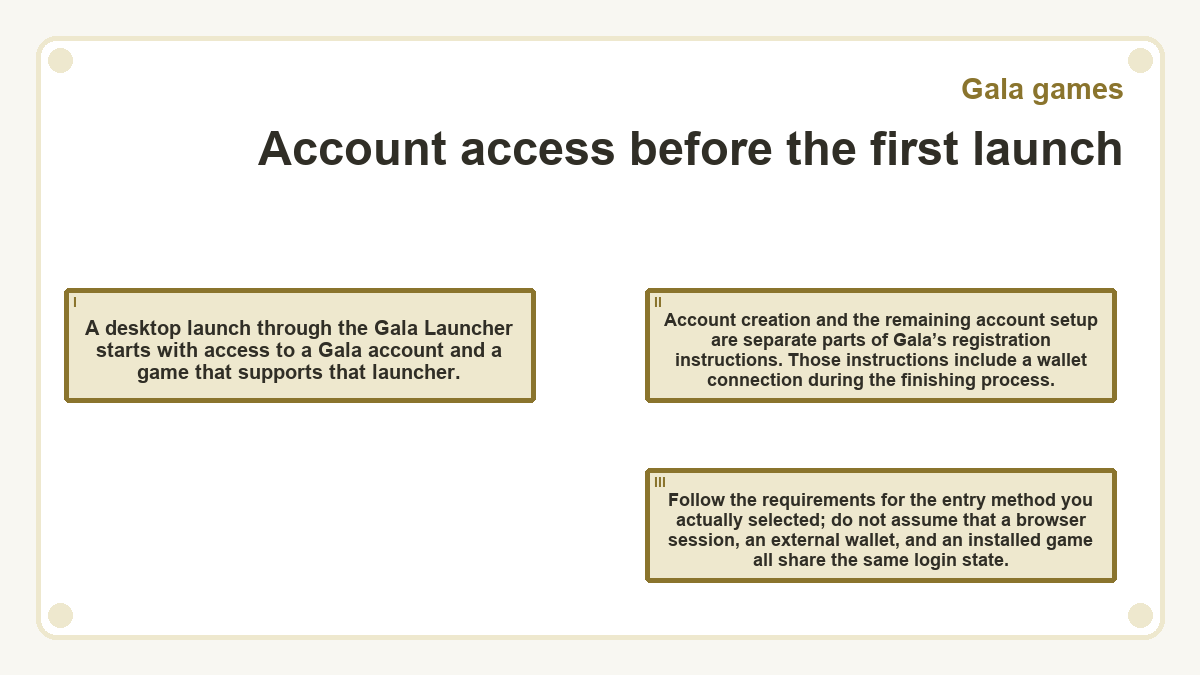
A desktop launch through the Gala Launcher starts with access to a Gala account and a game that supports that launcher. Account creation and the remaining account setup are separate parts of Gala’s registration instructions. Those instructions include a wallet connection during the finishing process. Follow the requirements for the entry method you actually selected; do not assume that a browser session, an external wallet, and an installed game all share the same login state.
Platform compatibility, account credentials, wallet credentials, and device permissions determine different parts of setup.
| Setup parameter | Supported setting or behaviour | Scope or access boundary |
|---|---|---|
| Desktop launcher platform | Windows and macOS installation paths | Individual games have their own compatibility requirements |
| Desktop account state | Signed in before selecting a launcher-supported game | Applies to the documented website launch path |
| Game launch request | The selected game’s Play control opens the launcher flow | The browser may request permission to open the application |
| Local installation permission | The operating system may request approval | Authorises software installation on the device |
| Account password | Authenticates account login | Has a different purpose from the Transfer Code |
| Two-factor authentication | Adds an authentication credential | Provides additional account protection |
| GalaChain Transfer Code | Authorises transactions involving the GalaChain wallet | Controls wallet actions rather than local software installation |
| Match each permission or credential to the operation that requests it before continuing. | ||
An installed launcher and a playable game
Installing the Gala Launcher does not itself complete the selected game’s installation. On the documented Windows path, the launcher can wait for a request from the game page. The browser then asks to open the application, and the game download follows. An idle launcher therefore has a different meaning from a failed game installation.
The game installer may require its own approval after the download finishes. The macOS procedure also distinguishes the launcher installation from the subsequent game installation. A completed download establishes that files arrived; a completed installer establishes that installation finished. Neither alone proves that the game runs successfully on the device. After installation, the documented Windows procedure requires selecting Play again; the macOS procedure launches the game automatically. Check that the game opens and its controls respond. That is a practical launch check, rather than a promise about performance throughout play.
What does a stalled launch tell you?
A stalled launch shows where progress stopped, but it does not necessarily identify the cause. Check the last visible state before repeating account creation, installation, or a purchase.
A launcher waiting for a game request has not yet reached the download stage. In the Windows procedure, opening the launcher from the selected game’s page supplies that request. A browser permission prompt can interrupt this handoff until you respond.
Check whether the download indicator is advancing; a visible indicator alone does not confirm that files are still arriving. An installer window means local setup still needs attention. Neither state establishes that the game has failed.
If the game opens but cannot reach playable content, record the exact message. An account error, an unavailable service, and a device compatibility error require different investigation. Treat these as possible causes until the message identifies one.
Retry after addressing the missing prerequisite or reported error. Repeating the same action without a changed condition gives little information about the cause. Keep any existing account and installation intact while investigating a problem that does not require replacing them.
Free play before an item purchase
For a title that offers free entry, the first useful test is whether its available gameplay runs on your device. Gala’s catalogue includes free-to-play options, but that label does not describe every title or every feature. Read the access conditions for the selected experience. A store listing for an NFT does not establish that buying it will fix a download, login, or compatibility problem. Keep optional item purchases outside the initial setup task unless the particular content explicitly requires ownership.
Login codes and wallet authorisation
When a prompt concerns wallet funds, identify the requested credential before entering anything. A Gala Transfer Code serves a different purpose from the password used for account login. The GalaChain Transfer Code applies to transactions involving the GalaChain wallet. An operating-system installation prompt concerns permission to change local software. Reading these prompts as separate operations helps prevent entering a wallet secret into the wrong place.
Two-factor authentication adds account protection. Keep recovery information private, and do not send a password, Transfer Code, seed phrase, or private key to someone offering launch assistance. Screenshots can expose those details too. A request for wallet credentials in a support conversation is a reason to stop that conversation, even when the original installation problem seems routine.
Ending the session with progress accounted for
Before leaving, distinguish successful gameplay from progress that the game has actually recorded. Check the active account and any save or synchronisation indication that the title provides. Do not assume that reaching a menu proves a match finished or that closing a window records pending progress. Save behaviour belongs to the individual game. Use its normal exit controls where available, and keep the same login details for your return. You can end the first session after testing gameplay without making an optional item purchase.
Questions and answers
How long should I allow for the first game download?
Download time depends on the game’s files and your connection, while installation also depends on the computer. Allow time for both the launcher and the separate game setup when the title requires them. A single platform-wide time estimate would not describe those different workloads.
What information helps support investigate a first-launch failure?
Provide the game title, operating system, exact error message, and the stage where progress stopped. Explain whether the launcher opened, the download started, the installer finished, or the game displayed its own screen. Include a screenshot when it clarifies the error, with credentials and other private information removed.
Does signing in on another device guarantee that my first-session progress will appear?
Progress availability on another device depends on the game’s account-linking and save behaviour. Successful sign-in establishes access to an account, but does not by itself establish cross-device progress support. Keep the original installation and login available until you have confirmed how that title stores and restores progress.